Post your first invoice.
Bare workspace, first invoice, paid in full. Below is the literal sequence of clicks, the journal entries that post at each step, and how the trial balance moves. After this, the other workflows start to feel familiar.
- 01
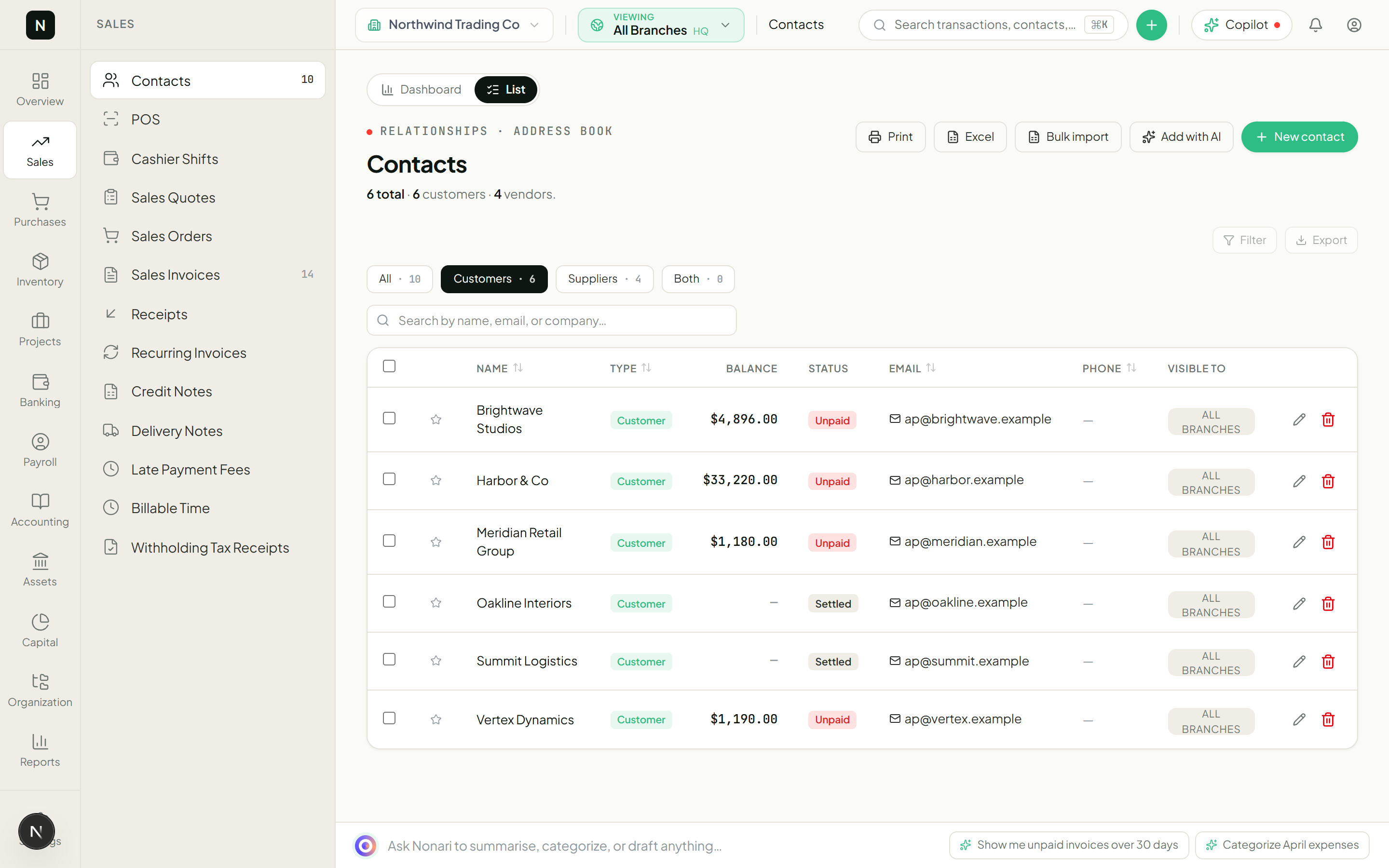
Add a customer
Go to Sales → Customers → New (top right). The only required field is the display name; everything else is optional and editable later.
Set the type to CUSTOMER (or BOTH if this contact is also a supplier — say, a vendor you also sell to). Save.
NoteWhy required: the invoice posts an Accounts Receivable subledger row to this contact. Without a contact, the AR aging report has nowhere to put the line.Sales → Customers - 02
Make sure your sales tax rate is set
Go to Settings → Tax rates. New workspaces ship with a few defaults — VAT 20%, GST 10%, etc. If your jurisdiction is different, edit or add your own. Mark the one you sell at most often as default.
You can override the rate per invoice line later, but having a default saves clicks on every invoice from now on.
- 03
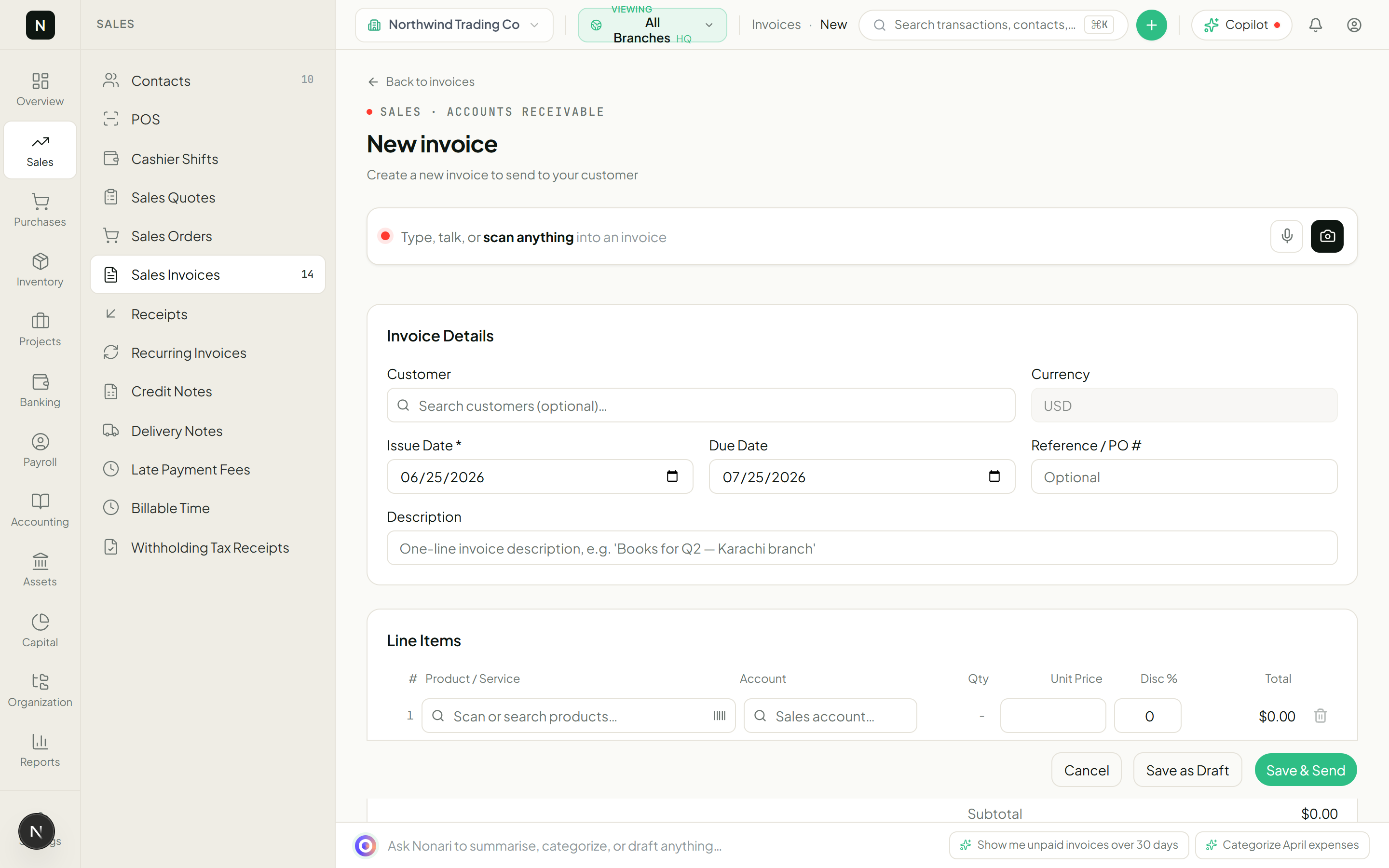
Open the invoice form
Sales → Sales Invoices → New. Pick the customer you just added. The issue date defaults to today. Pick a due date — 30 days from issue is the workspace default; the customer-level default overrides this if you set one on the contact card.
Sales → Sales Invoices → New - 04
Add a line
Click "Add line." Enter a description, a quantity, and a unit price. The Account dropdown defaults to "Sales — Revenue" (account 4000). For a service invoice, that is the account you want.
For a goods invoice, switch to "Sales — Retail" (4010) or wherever your top-line revenue lives. For multi-item invoices, add more lines.
- 05
Apply tax
On the same line row, the tax dropdown defaults to your default rate. Confirm or override. The line total updates live; the invoice subtotal, tax, and grand total recompute below.
- 06
Save as draft
Click Save. Status: DRAFT. Nothing has posted to the ledger yet — no AR row, no revenue line, no tax payable. The invoice is just a holding form.
We do this by default because invoices are often drafted, edited, and then sent. Posting them to the GL on first save would mean a steady stream of post-and-reverse churn — bad for the audit log, bad for performance.
NoteTip: drafts show up in the Approvals inbox if you have a separate approver in your workflow. They never affect the trial balance until they are sent. - 07
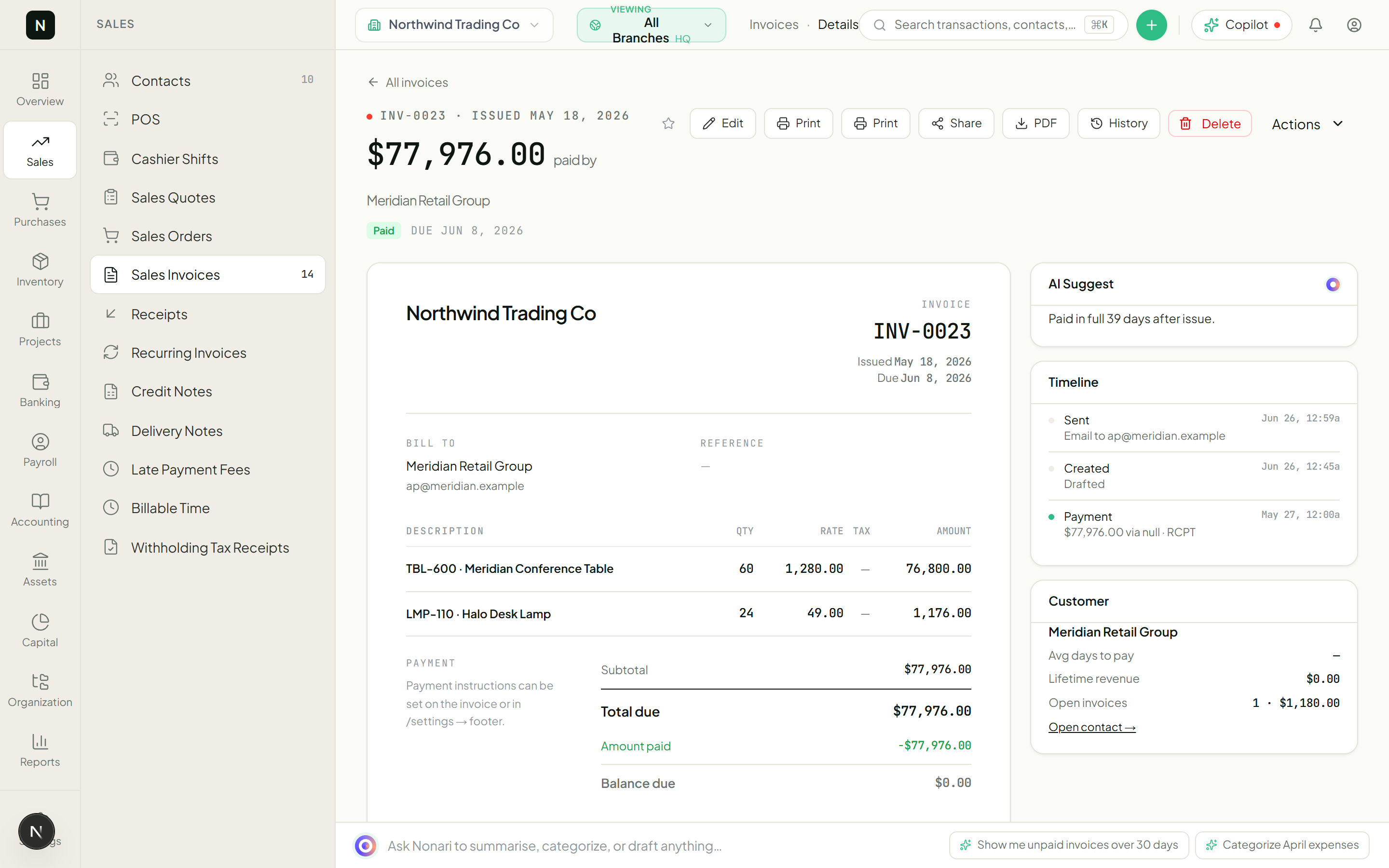
Send the invoice
Click "Send" (top right). The status flips to SENT. Now the journal entry posts.
For a $100,000 invoice with 17% sales tax, the JE looks like this:
The sent invoice — AR + revenue now on the ledger - 08
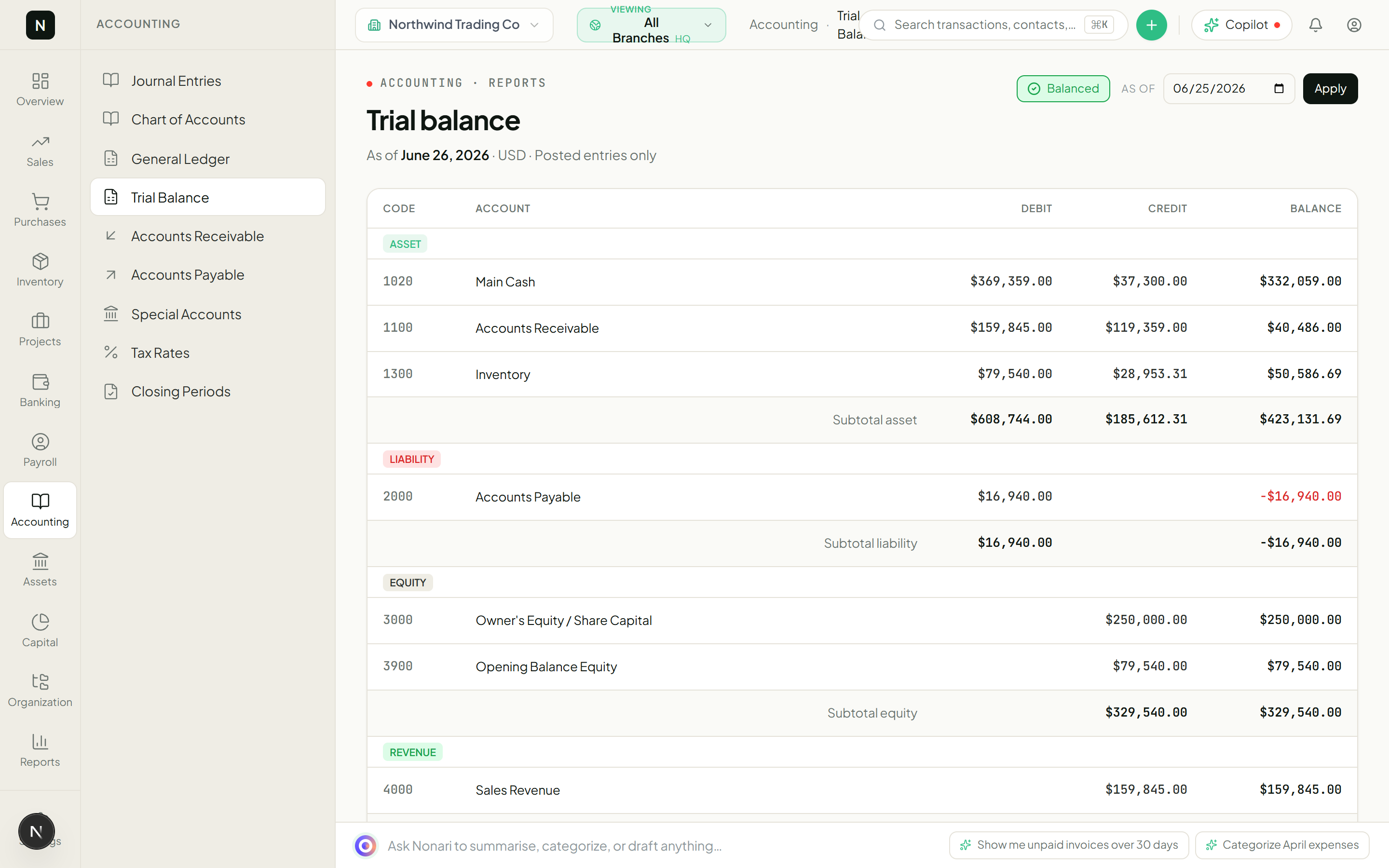
Watch the trial balance reconcile
Go to Accounting → Trial Balance. The new figures land in three places: AR up by 117,000, Revenue up by 100,000, Tax Payable up by 17,000. Sum of debits = sum of credits. The trial balance still ties.
This is the moment ledger-first earns its keep — the books reconcile because they were always reconciled. There is no "regenerate report" step.
Accounting → Trial Balance — debits = credits, always - 09
When you get paid
Banking → Receipts → New. Pick the customer, the invoice, the bank account it landed in, the date. Save.
A new JE posts: DR Cash, CR Accounts Receivable. The invoice is marked PAID; the AR subledger row clears; the cash position on your dashboard goes up; nothing else moved.