Receive a bill and pay it.
From a dropped PDF (or pasted email body) to a paid bill, with AP and cash reconciled at every step. Three-way match optional — covered at the end.
- 01
Add the supplier as a contact
Purchases → Suppliers → New (top right). Set the type to VENDOR (or BOTH if you sometimes sell to them too). Display name is the only required field; everything else can wait.
Why now: the bill posts an Accounts Payable subledger row to this contact. Without a contact, the AP aging report and supplier statements have nowhere to put the line.
- 02
Drop the invoice in (the fast way)
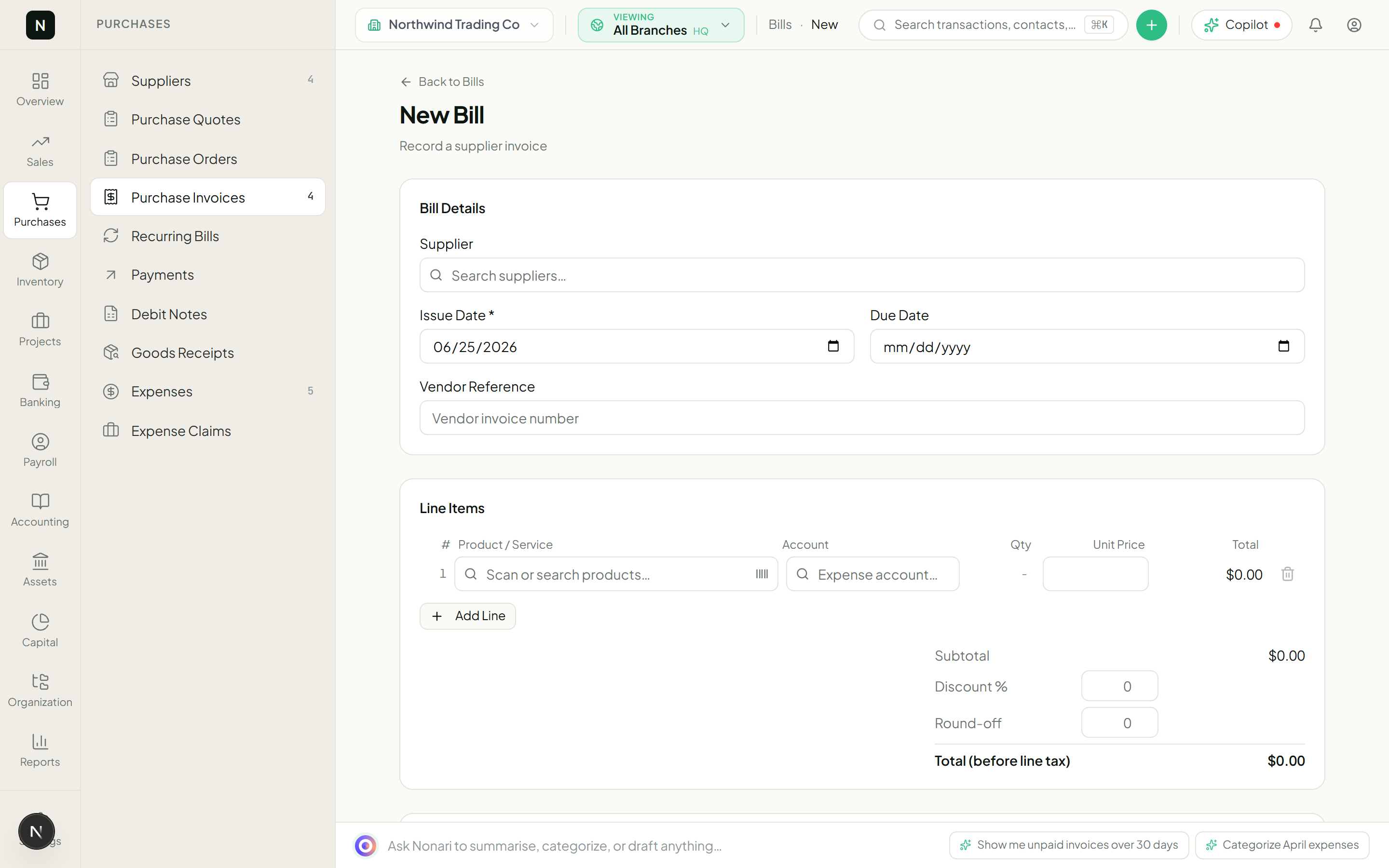
Drag the supplier PDF or photo onto the new-bill form (Purchases → Purchase Invoices → New). The AI bookkeeper extracts vendor, date, line items, and tax into the form within a few seconds — you review, edit if needed, and post.
Or paste the email body / receipt text into the AI chat at /ai and ask "draft a bill from this." Same parser, no upload step. Either path lands in the same form for review.
NoteTip: voice works too — open the mobile app, tap-to-talk, and describe the bill.Purchases → Purchase Invoices → New - 03
Review the bill
Confirm the vendor, the issue date, the due date (defaults to your workspace payment terms — 30 days unless you set otherwise on the supplier card), and each line item. The Account dropdown defaults to a sensible expense account for the line description; override if the AI guessed wrong.
Apply the right tax rate per line. The bill subtotal, tax total, and grand total recompute live below.
- 04
Save as draft, then approve
Click Save. Status: DRAFT. Nothing has posted yet — no AP row, no expense JE. The bill is just a holding form, identical to invoices on the sales side.
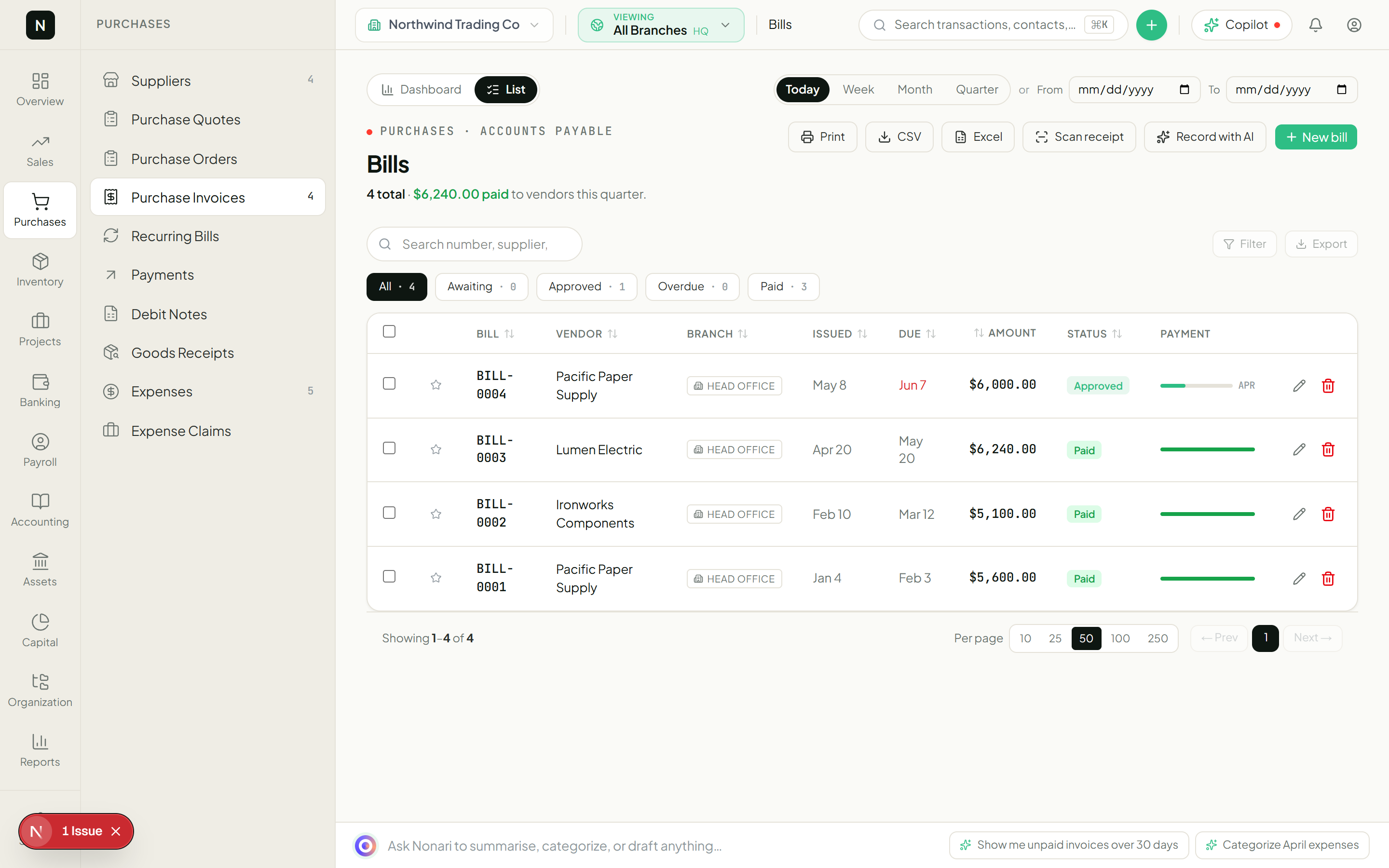
When you (or whoever your approver is) hit Approve, the status flips to APPROVED and the JE posts. For an $850 utility bill the JE looks like:
Purchases → Bills - 05
Pay the bill
Banking → Payments → New. Pick the supplier, the bill, the bank account it’s coming out of, the date. If you’re paying multiple bills in one wire, add them all to the same payment — the form lets you allocate one cash outflow across many AP lines.
Save. The JE posts:
- 06
Watch AP clear
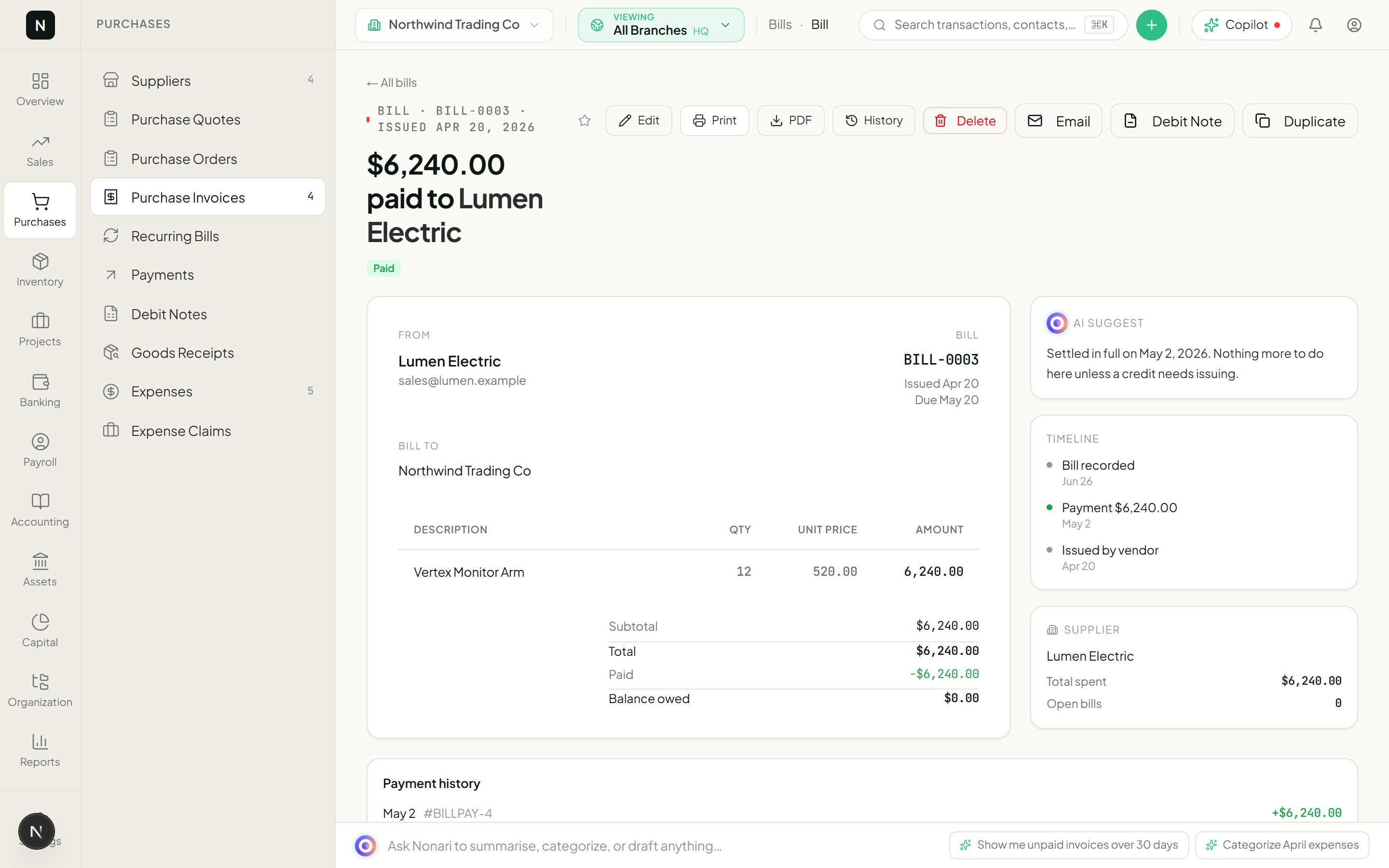
Reports → Aged Payables. The bill is gone — the supplier’s outstanding balance is back to zero. The cash position on your dashboard is down by $850. The bill detail page shows status PAID, with the linked payment and the receipt JE id.
The trial balance still ties because every step posted a balanced JE. There is no "regenerate AP" job to run.
The paid bill — AP cleared, payment linked - 07
Three-way match (optional but recommended)
If you raised a Purchase Order before the bill, link them: open the bill, click "Match against PO," pick the PO. The system compares quantities and prices line-by-line. Any over-/under-billing surfaces in a variance row that you can resolve before paying.
On Studio and above, the same flow extends to Goods Receipts — three-way match between PO → GR → Bill — for the cleanest stock + cash + AP reconciliation possible.
NoteWhen the three sides agree, the system never asks for confirmation — it just posts. When they disagree, you get a clear delta on each line so you know what to push back on with the supplier.